Free Fire MAX on PC: How to Play on BlueStacks and System Requirements
Want to play Free Fire MAX on your computer? This guide explains how to use the BlueStacks emulator to run Free Fire MAX on Windows, system requirements, installation steps, and tips for best performance — all without violating game terms.

Updated regularly to reflect emulator updates and requirements.
Can You Play Free Fire MAX on PC?
Free Fire MAX does not have an official PC version, but you can play it on a computer using Android emulators such as BlueStacks. Emulators create a virtual Android environment on your PC so the game runs as if it were on a mobile device.
This is helpful for players who prefer larger screens, mouse and keyboard controls, or multi-instance gameplay.
Download BlueStacks
To play Free Fire MAX on PC, you first need to install an Android emulator. The most common and reliable option is:
- BlueStacks – the most widely used Android emulator for games
Get BlueStacks directly from the official website:
Always download emulators from the official site to avoid malware or unofficial builds.
PC System Requirements for Free Fire MAX
| Requirement | Minimum | Recommended |
|---|---|---|
| OS | Windows 7 or higher | Windows 10 / 11 |
| Processor | Intel Core i3 or equivalent | Intel Core i5 / Ryzen 5 |
| RAM | 4 GB | 8 GB or more |
| Storage | 10 GB free | 20 GB free |
| Graphics | Intel HD / basic GPU | NVIDIA / AMD discrete GPU |
Performance can vary based on your PC specs and background apps.
How to Install Free Fire MAX on PC (Step-by-Step)
- Visit the official BlueStacks website and download the latest version.
- Install BlueStacks following the on-screen instructions.
- Once installed, open BlueStacks and sign in with your Google account.
- Open the Google Play Store inside BlueStacks.
- Search for Free Fire MAX and install it like on a mobile device.
- Launch Free Fire MAX and enjoy playing with keyboard and mouse controls.
Some versions of BlueStacks include built-in keymapping tools to help optimize controls.
Tips for Best Experience
- Enable virtualization (VT) in your BIOS for better performance.
- Allocate more RAM if your PC allows it.
- Update graphics drivers regularly.
- Avoid running heavy background apps while gaming.
Is It Safe to Play on PC?
Playing Free Fire MAX on PC using an emulator like BlueStacks is generally safe as long as you use the official BlueStacks software and download the game through the Google Play Store.
Avoid modified emulator builds or unofficial sources that could compromise your account integrity or security.
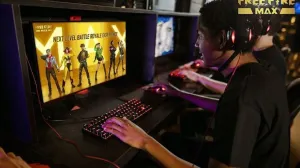
![How to play Free Fire Max on PC with Now GG [no programs] — Free Fire](https://www.freefiremania.com.br/images/capas/300/free-fire-max-pc-now-gg.webp)
 Do you want to receive notifications about Free Fire?